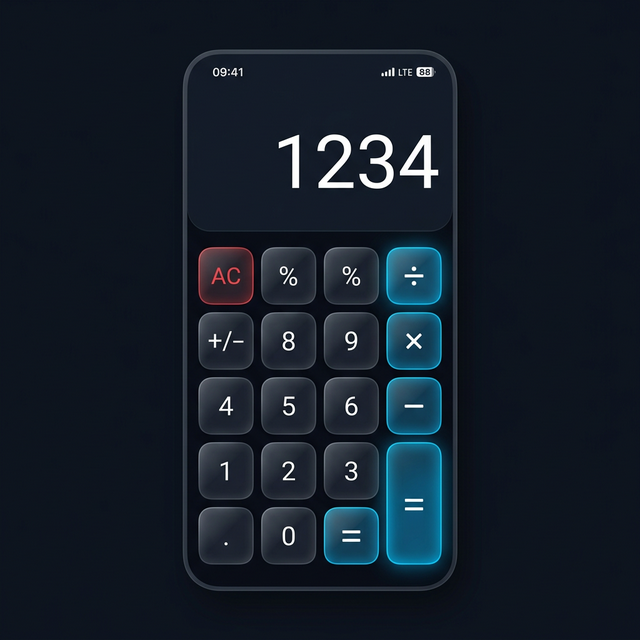
Forgetting your Calculator Hide App PIN is more common than you think — especially if you haven’t opened the vault in a while. If you set up email recovery when you first installed the app, unlocking your vault is a straightforward process that takes about two minutes.
This guide covers the email recovery method specifically. If you’re looking for other recovery options including biometric unlock and security questions, see the full password recovery guide.
Before You Start: Did You Set Up Email Recovery?
Email recovery only works if you registered a recovery email address inside Calculator Hide App before getting locked out. If you never set one up, skip to the section on alternative methods below.
To check: if you remember setting up the app and entering an email address during setup, email recovery should work for you. If you skipped that step, you’ll need a different approach.
How to Unlock Using Email Recovery — Step by Step
- Open Calculator Hide App. You will see the calculator screen.
- On the calculator screen, look for a “Forgot Password” option. This is usually accessible by long-pressing the ”=” button or tapping a small help icon. The exact location depends on your app version.
- Tap “Forgot Password” or “Email Recovery.”
- Enter the email address you registered when setting up the app.
- Tap “Send Recovery Link.”
- Open your email inbox. Look for an email from Calculator Hide App. Check your spam folder if it doesn’t arrive within two minutes.
- Tap the recovery link in the email. It will open Calculator Hide App directly.
- You will be prompted to set a new PIN. Enter your new PIN twice to confirm.
- Your vault opens with your new PIN. All your files are intact — the PIN reset does not affect your encrypted files.
The Recovery Link Has Expired — What Now?
Recovery links expire after 30 minutes for security reasons. If your link has expired, go back to the app, tap “Forgot Password” again, and request a new link. Check your inbox immediately this time.
The Email Didn’t Arrive
Check your spam or junk folder first — email from recovery systems is sometimes filtered. If it’s not there after five minutes, verify you typed the correct email address. If you registered a different email address than the one you’re checking, you’ll need to try the address you used during setup.
What If I Never Set Up Email Recovery?
If you never registered a recovery email, email recovery won’t work. Your options are: biometric recovery (if you set up Face ID or fingerprint unlock), security question recovery, or contacting Calculator Hide App support. See the full password recovery guide for all available methods.
How to Set Up Email Recovery Right Now (So This Never Happens Again)
- Open Calculator Hide App and enter your current PIN.
- Go to Settings inside the vault.
- Find “Recovery Email” or “Account Security.”
- Enter your email address and confirm it.
- You will receive a verification email — click the link to confirm.
Done. The next time you forget your PIN, the email recovery process above will work immediately.
Frequently Asked Questions
Will my photos be deleted when I reset my PIN via email?
No. Your encrypted files are completely unaffected by a PIN reset. The PIN is only the key to access the vault — changing it does not touch the files inside.
Is the email recovery process secure?
Yes. Recovery links are encrypted, single-use, and expire after 30 minutes. Once used, the same link cannot be used again. Even if someone intercepts the email, they cannot reuse the link after you’ve completed your reset.
Can I change my recovery email address?
Yes. Go to Settings inside the vault, find Recovery Email, and update the address. You’ll receive a verification email at the new address to confirm the change. For other security options, see the guide on biometric vs PIN authentication.