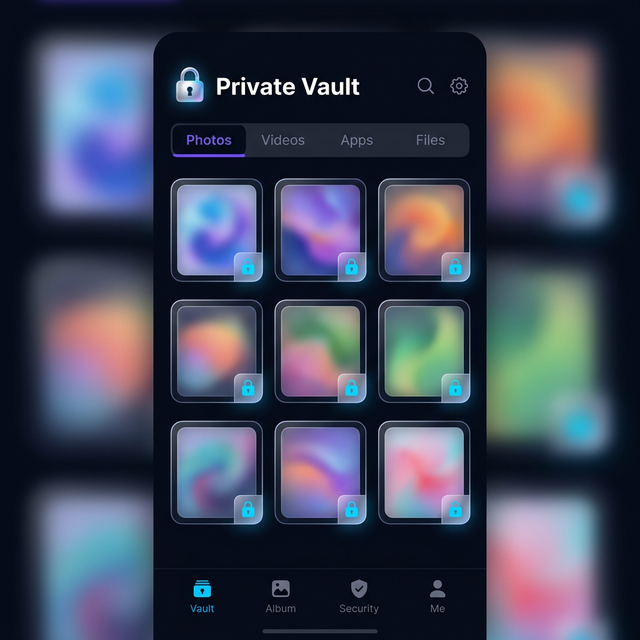
One vault is good. Two vaults are better. Calculator Hide App lets you create multiple separate vaults, each protected by a different PIN. This is one of the most powerful — and least talked about — privacy features in the app.
Here’s how it works and how to set it up.
Why Use Multiple Vaults?
A single vault stores everything in one place protected by one PIN. Multiple vaults let you separate content by category, sensitivity level, or use case — each behind its own PIN that nobody else knows.
Common use cases: one vault for work documents, one for personal photos, one as a decoy vault showing harmless content. If someone pressures you to unlock your phone, you open the decoy vault — they see ordinary content and have no reason to suspect a second, real vault exists.
How to Create a Second Vault
- Open Calculator Hide App and enter your main PIN to access the vault.
- Go to Settings inside the vault.
- Look for “Multiple Vaults,” “Add Vault,” or “Vault Manager” — the exact label varies by app version.
- Tap “Create New Vault.”
- Enter a new PIN for this vault. Use a PIN that is different from your main vault PIN.
- Set a security question or recovery email for this vault separately.
- The new vault is created. It starts empty and is completely independent of your first vault.
How to Switch Between Vaults
Each vault is unlocked by entering its specific PIN on the calculator screen. Your main vault PIN opens vault one. Your second vault PIN opens vault two. From the outside, the app looks identical — a working calculator. The PIN you enter determines which vault opens.
You can create as many vaults as you need. Each one is independently encrypted and inaccessible without its specific PIN.
Setting Up a Decoy Vault
A decoy vault is a vault you’re comfortable showing to someone else. It might contain a few ordinary photos or notes — nothing sensitive. When you set it up, load it with harmless content. If you are ever asked to unlock your phone, you enter the decoy PIN instead of your real PIN. Read the full decoy vault setup guide for the complete strategy.
Assigning Different Content to Each Vault
Once your vaults are created, treat each one separately. When importing photos or hiding apps, you will be prompted to choose which vault to add them to. Select the appropriate vault and the file is stored there, accessible only with that vault’s PIN.
Best Practices for Multiple Vaults
- Use PINs that are genuinely different — not just one digit apart.
- Set up a recovery email for each vault independently so you can recover access to either one separately.
- Consider biometric unlock for your main vault only — keep your secondary vaults PIN-only for maximum security.
- Keep your decoy vault updated with believable but harmless content so it looks authentic.
Frequently Asked Questions
How many vaults can I create in Calculator Hide App?
Calculator Hide App supports multiple vaults. The practical limit depends on your device storage — each vault stores files independently, so storage is the only real constraint.
Can someone tell I have multiple vaults?
No. From the calculator screen, entering different PINs simply opens different vaults. There is no visual indicator of how many vaults exist. The app looks identical regardless of how many vaults are configured.
What happens to one vault if I forget the PIN for the other?
Each vault is independent. Resetting the PIN for one vault has no effect on any other vault. Your content in all other vaults remains accessible via their own PINs.