Most people treat their phone’s gallery app the way they treat their bedroom — a personal space where privacy is assumed because it feels personal. You took those photos. They live on your phone. Who else could possibly see them?
The answer is: more entities than you want to think about.
Your phone’s gallery app was not designed with privacy as its primary objective. It was designed for convenience, sharing, and backup. The privacy implications of those design goals are real, well-documented, and almost never explained to users clearly. This article fixes that.
Google Photos Scans Every Image You Upload
Start with the most widely used gallery app on Android: Google Photos. As of 2026, Google Photos has over a billion active users. Most Android phones come with it pre-installed. Many users set it to automatically back up every photo they take.
Here is what happens when a photo reaches Google’s servers: Google’s machine learning systems analyze its content.
This is not speculation or a privacy advocate’s interpretation. Google’s own support documentation describes it. The analysis is how Google Photos identifies faces for the People album feature, recognizes objects and scenes for automatic album organization, identifies text in photos using optical character recognition, recognizes landmarks and locations, and generates the Memories feature that resurfaces old photos on anniversaries.
All of this requires understanding what is in your photos. Google’s systems process your images on their servers to extract this information.
Google’s official privacy policy states that your photos are not sold to third parties and are not used to serve ads in other Google products. Those commitments matter and should be acknowledged. But the scanning itself happens regardless of those policies. Google has access to the analyzed content of your photos.
There is also a practical distinction between “not used for ads” and “not accessible to anyone.” Google’s servers hold your photo data. Google responds to valid legal requests including subpoenas, court orders, and national security letters. In 2023, Google received over 150,000 legal requests globally and complied with approximately 80% of them. If law enforcement presents a valid legal basis to request your photo data, Google can provide it.
This does not make Google a bad actor. It makes Google a company that operates under laws like every other company. The point is that treating Google Photos as a private space is a category error. It is a cloud service operated by a corporation with its own obligations to third parties including governments.
Samsung Gallery Can Be Accessed via USB Without Your PIN
Samsung phones are the most popular Android devices worldwide. If you use a Samsung phone, there is a significant chance your photos live in Samsung Gallery or Samsung Cloud.
Here is a scenario worth understanding. You plug your Samsung phone into a computer via USB to transfer some files. You accept the file transfer permission prompt on your phone. A file browser on the computer opens and displays your internal storage. Depending on your USB connection mode and Android version, your DCIM folder — which contains your camera photos — may be directly accessible and browsable without any additional authentication.
This is not a security vulnerability in the traditional sense. It is a design feature of the MTP (Media Transfer Protocol) that Android uses for USB file access. MTP was designed to make it easy to move media files between devices without needing to mount the entire file system. That convenience comes with a direct implication: photos stored in standard gallery locations are accessible over USB to any computer you connect to without requiring your phone’s PIN or fingerprint.
This applies to Samsung Gallery, Google Photos’ local copies, MIUI Gallery on Xiaomi devices, and virtually every standard Android gallery app. The gallery app’s lock screen PIN, if it has one, is a UI layer. The underlying files are stored in an accessible location on the file system.
Test this yourself. Connect your Android phone to a computer, accept the file transfer prompt, and open a file explorer. Navigate to DCIM, then Camera. Your photos are there, accessible without any password.
Samsung’s Secure Folder feature does solve this problem for files stored inside it — Secure Folder uses Knox-level encryption that makes those files inaccessible over USB. But the default Samsung Gallery is not inside Secure Folder unless you explicitly move files there.
The lesson: if you store photos in your standard gallery, anyone who can get you to connect your phone to a computer — or anyone who has a few seconds with your unlocked phone and a USB cable — can copy those photos.
Any App with Storage Permission Can Read Your Gallery
Here is an uncomfortable fact about how Android permissions work. When an app requests and receives storage permission — or the newer media access permissions on Android 13 and later — that app can read every photo in your gallery.
Think about the apps you have granted storage or photo access to. Photo editing apps. Social media apps. Messaging apps that support image sharing. Camera replacement apps. Background wallpaper apps. Any of these, if they have the relevant permissions, can programmatically access all your photos.
Most of these apps are legitimate and do not misuse this access. But some are not legitimate. Fake utility apps, games with suspicious permission requests, and apps disguised as useful tools but built to harvest data have all been found in both the Google Play Store and Apple’s App Store over the years. Granting them photo access means granting them access to everything in your gallery.
The permission model on modern Android has improved. Android 13 introduced more granular media permissions, allowing users to grant access to specific albums rather than the entire library. iOS has had similar granular permission controls since iOS 14. These improvements help, but they depend on users actively managing permissions, which most do not do.
There is also the issue of third-party photo editors that cache images. When you open a photo in a third-party editor, the app typically creates a cached copy of the original in its own storage directory. Even if you delete the original from your gallery later, that cached copy may persist in the editor app’s directory until you clear the app’s cache or uninstall it. Some photo editors store edited versions and originals in directories that are accessible to other apps.
The pattern across all of these issues is the same: standard gallery apps store photos in locations that are broadly accessible within the Android or iOS ecosystem. Convenience and accessibility are features, and they are incompatible with genuine privacy.
Google Photos’ Face Recognition and What It Knows
Return to Google Photos for a moment, because the face recognition feature deserves specific attention.
When you use Google Photos and have People & Pets enabled, Google’s systems identify every face that appears in every photo you upload. It groups photos by face, allowing you to find all photos of a specific person. This is genuinely useful.
The implication: Google’s systems now have a biometric record of every person who has ever appeared in any photo you have taken and uploaded. They can match faces across photos. They can identify when the same face appears in photos taken years apart.
Google’s privacy policy states that face grouping data is used only to organize your photos and is not shared with other Google products or used for advertising. However, the data exists on Google’s servers. If Google is subpoenaed for information about a specific individual, facial recognition data associated with their appearance in your photos could theoretically be part of that response.
This is not hypothetical fearmongering. Law enforcement agencies have subpoenaed Google for data related to specific individuals in criminal investigations. The request does not need to be about you — if someone photographed in your gallery becomes the subject of an investigation, your Google Photos data is potentially relevant.
The iPhone Hidden Album Is Not Hidden
Apple’s Photos app includes a feature called Hidden Photos. You can hide individual photos by pressing and holding them and selecting Hide. The hidden photos move to a Hidden album under Utilities in the Albums view.
For years, this Hidden album required no authentication to open. iOS 16 added the ability to lock it with Face ID or your device passcode. However, locking it is not the default — it is an opt-in setting that requires you to go to Settings, then Photos, and toggle Use Face ID.
Most iPhone users who hide photos have not done this. Their “hidden” photos are sitting in an unlocked album that anyone with their unlocked phone can open in about ten seconds.
Even with the lock enabled, the protection is limited. The lock uses your device passcode as a fallback. If someone knows your device passcode — perhaps they watched you enter it, or it is something obvious — they can bypass the Face ID requirement.
And critically, neither version of the Hidden album encrypts the photos. The photos are stored in the same format as all other Photos library content. If someone extracts your iPhone’s data through a backup or forensic tool, hidden photos are right there alongside all the visible ones.
Apple’s iCloud Photo Library, if enabled, syncs the Hidden album to Apple’s servers. Your hidden photos are stored in iCloud in the same way as your visible photos. This means they are accessible via iCloud.com, subject to the same legal requests that apply to any iCloud data, and recoverable in the event of account access by an unauthorized party who has your Apple ID credentials.
The iPhone Hidden album is a feature designed to remove photos from casual browsing view — a convenience tool, like hiding an app behind a folder. It is not a privacy feature in any meaningful technical sense.
iCloud’s Relationship with Your Photos
Apple promotes iCloud Photo Library as a seamless backup and sync solution, and it is genuinely excellent at that job. Every photo is automatically backed up. Your entire library is accessible from any of your Apple devices. Storage is managed intelligently.
The privacy implications are the same as any cloud storage service. Your photos are stored on Apple’s servers. Apple has access to them for purposes including responding to legal requests. Apple also performs CSAM (child sexual abuse material) scanning on iCloud Photos — server-side analysis of photo content — which means Apple’s systems are analyzing images stored in iCloud.
Apple’s privacy track record is significantly better than Google’s by most measures. Apple’s business model is not advertising, so the incentive to monetize photo data for targeting purposes does not exist in the same way. Apple’s data requests transparency reports show a company that resists broad surveillance requests and discloses when possible.
But the structural reality remains: storing photos in iCloud means storing them on Apple’s servers, subject to Apple’s privacy policy, Apple’s obligations under law, and whatever future changes Apple makes to that policy.
For photos you genuinely want to keep private — not from casual browsing, but from any third-party access whatsoever — cloud storage of any kind introduces a risk that local encrypted storage does not.
Third-Party Photo Editors and Their Caches
This risk is less widely discussed but practically significant. When you use a third-party photo editor — Snapseed, VSCO, Lightroom Mobile, Facetune, any of hundreds of editing apps — the app imports your photo into its own working space to allow editing. This typically involves creating a copy.
Where that copy goes depends on the app. Many photo editors create cached versions in their app’s data directory. These cached files are:
Not visible in your standard gallery because they live in the app’s private storage directory. Not deleted when you delete the photo from your gallery unless you also clear the app’s cache. Not always cleaned up when you uninstall the app, depending on the platform and the app’s implementation.
Apps that request external storage write permissions can store these caches in locations accessible to other apps. Some apps store edited versions in your main DCIM directory without asking.
The practical scenario: you edit a private photo in a popular editing app. You later delete the original. Three months later, you are looking through storage files on your phone or have granted another app broad storage access. The cached version from the editing app is still there.
None of this is malicious behavior by photo editors. It is a side effect of how file caching works in mobile apps. But it is another reason why the standard gallery ecosystem — apps sharing access, caches persisting, copies accumulating — is not a controlled environment for private content.
What Genuine Photo Privacy Looks Like
The common thread through everything above is that standard gallery apps store photos in broadly accessible locations and transmit them to cloud services that have their own access and obligations.
Genuine photo privacy requires a different architecture: encrypted storage in a sandboxed container with its own authentication, separate from the photo library ecosystem, that does not connect to cloud services without your explicit action.
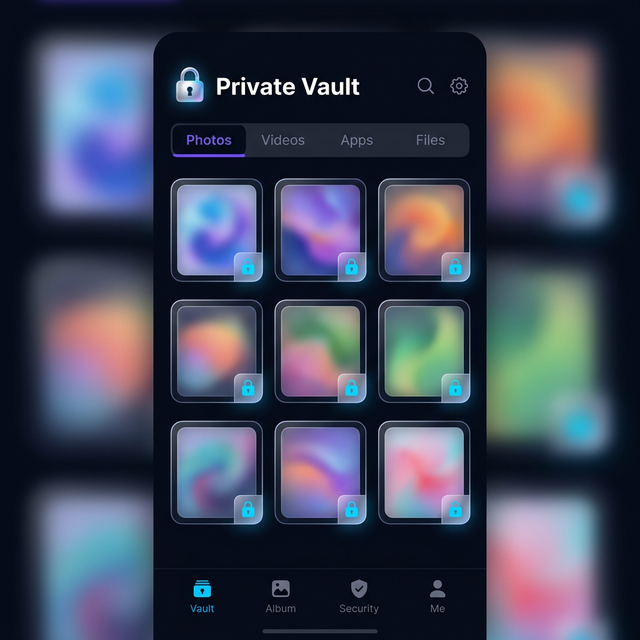
This is exactly what vault apps provide. When you import a photo into Calculator Hide App’s vault, several things happen. The photo is encrypted with AES-256 using a key derived from your PIN. The encrypted file is stored in the app’s sandboxed private storage, not in DCIM or your camera roll. The original is deleted from the gallery. The encrypted file is not accessible over USB — it lives inside the app’s private storage directory, not the media library. Google Photos and iCloud have no knowledge of it and do not back it up. No other app can read it because it is in a private directory, not the shared media library.
The result is that the photo effectively does not exist in the gallery ecosystem at all. It exists only as encrypted data inside the vault.
This is the difference between hiding photos and protecting photos. Hiding moves them to a different folder or album but leaves them in the same accessible ecosystem. Protecting removes them from that ecosystem entirely and replaces them with encrypted data.
We cover the specific workflows for both Android and iPhone in our guides to how to hide photos on Android, how to hide photos on iPhone, and how to hide videos on Android. We also cover the specific question of what happens to photos you have already deleted in our article on what actually happens to deleted photos. For Google Photos specifically, see our guide on how to hide photos from Google Photos since it has its own sync behavior that bypasses standard gallery controls.
The Right Mental Model
Stop thinking of your phone’s gallery as a private space. Think of it as a shared service with multiple stakeholders — the gallery app developer, the cloud backup service, any app with storage permission, and potentially law enforcement through legal requests.
For most photos, this is completely fine. Your vacation photos, your food photos, your pet photos — keeping these in the standard gallery is perfectly reasonable.
For photos that are genuinely private — intimate images, sensitive documents, anything you would not want accessible to the parties described above — the standard gallery is the wrong place.
The right place is an encrypted vault with its own authentication, separate from the gallery ecosystem. Calculator Hide App is built for exactly this purpose. Its security architecture is honest and verifiable. You can explore the security features in detail and make an informed decision.
If you are ready to move your private photos somewhere that actually deserves the word “private,” download Calculator Hide App and start the process today.
Frequently Asked Questions
Does Google Photos actually scan the content of my photos? Yes. Google Photos uses server-side machine learning to analyze photo content for features including face recognition, object identification, landmark detection, scene recognition, and optical character recognition. This analysis is documented in Google’s support materials. Google’s policy states this data is not used for advertising, but the analysis does happen on Google’s servers.
Can Samsung Gallery photos be accessed without a PIN via USB? Yes. Standard gallery photos on Android devices, including Samsung, are stored in the DCIM directory which is accessible over USB via the Media Transfer Protocol without requiring your device PIN. This applies when you accept a file transfer connection on your device. Samsung’s Knox-based Secure Folder is an exception to this.
Is Apple’s Hidden album in Photos actually private? No, not in a meaningful sense. The Hidden album requires no authentication by default — iOS 16 added an optional lock but it is not enabled by default and uses your device passcode as a fallback. The photos themselves are not encrypted. They are included in iCloud backups and accessible through forensic analysis.
What apps can access my photo gallery? Any app you have granted storage or photo permissions can access your photo library. On modern Android and iOS, you can review and revoke these permissions in your device settings. Go to Settings, then Privacy, then Photos (iOS) or App Permissions then Storage (Android) to review which apps have access.
Does iCloud sync my Hidden album photos? Yes. iCloud Photo Library syncs your entire Photos library including the Hidden album to Apple’s servers. Hidden photos are accessible via iCloud.com when you are signed into your Apple ID.
Can photo editing apps keep copies of my photos? Yes. Photo editors typically create cached or working copies of photos when you open them for editing. These cached files may persist in the app’s data directory after you delete the original. Clearing an app’s cache or uninstalling it will typically remove these copies, but the behavior varies by app.
What is the difference between hiding photos and protecting photos? Hiding moves photos to a different location within the same accessible ecosystem — a hidden album, a different folder. Anyone who navigates to that location or has system-level access can still see them. Protecting encrypts the photos and stores them in a sandbox outside the standard photo ecosystem, making them inaccessible without the encryption key.
Does Google use my photos for advertising? Google’s policy states that photos stored in Google Photos are not used to serve ads in other Google products. However, Google’s systems do analyze photo content for organizational features. Google’s advertising business does not directly use photo data for targeting as of 2026.
Are iPhone photos more private than Android photos by default? In some ways, yes. Apple’s privacy policies are generally more restrictive about data use, and iOS’s sandboxing model limits what third-party apps can do with photo data. However, the structural privacy issues — cloud storage, accessible gallery, apps with photo permissions — exist on both platforms.
What is the most private way to store photos on a smartphone? Store them in an encrypted vault app with its own authentication, separate from the phone’s standard photo library. Photos stored this way are not accessible to cloud backup services, not readable over USB, not accessible to other apps, and protected by encryption even if someone obtains the device storage directly.