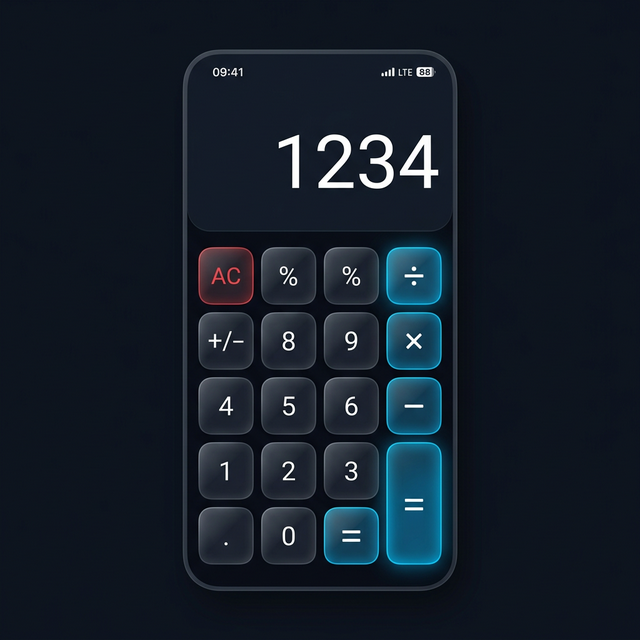
In 2021, a security researcher published a paper demonstrating that a popular vault app with more than 50 million downloads stored encrypted photos with a key that was hardcoded into the app itself. The key was the same for every user. Anyone who extracted the app’s binary file and analyzed it could decrypt every photo stored by every user of that app on any device. The word “encrypted” appeared throughout the app’s marketing materials. Technically, the files were encrypted. Practically, the encryption was worthless.
This is the problem with vault apps as a category. The range between the best implementations and the worst implementations is enormous, and users have almost no way to tell the difference from the outside. The marketing language is nearly identical across the entire spectrum.
This article explains how vault apps actually work at a technical level — the architecture behind the good ones and the shortcuts taken by the bad ones. After reading it, you will know exactly what questions to ask and what claims to trust.
The Fundamental Architecture: Sandboxed Encrypted Containers
Every serious vault app is built around the same core concept: a sandboxed container on your device that holds files in encrypted form.
To understand what “sandboxed” means here, you need to understand how mobile operating systems handle app storage. Both iOS and Android give each installed app its own private storage directory. By default, other apps cannot access this directory. The files inside belong to the app that created them. This isolation is called sandboxing.
When you install any app, it gets its own sandbox. The gallery app cannot read the data in your banking app. Your messaging app cannot read the files in your PDF reader. This is a fundamental security feature of both iOS and Android.
A vault app uses its sandbox strategically. Instead of allowing photos to live in the shared media library — the camera roll, DCIM directory, or photo gallery — it stores them in its own sandboxed storage directory. Other apps cannot access this directory. USB connections cannot browse it without special permissions. It is effectively invisible to the rest of the phone’s file system from a standard user perspective.
But sandboxing alone is not encryption. The files in a sandboxed directory are protected from other apps, but they are not protected from someone who has root access to the device, from forensic tools that operate below the application layer, from device backups, or from someone who removes the storage chip and reads it directly.
This is where encryption comes in. A properly built vault app does not just store files in its sandbox. It encrypts every file before writing it to the sandbox. The files that exist on the storage medium are not photos — they are encrypted binary data that only becomes photos when decrypted with the correct key.
The combination of these two layers — sandboxed storage plus file-level encryption — is what makes a real vault app fundamentally different from a simple locked folder. We explain how the encryption standard itself works in our article on how AES-256 encryption works.
How Encryption Keys Are Derived from Your PIN
The question of where the encryption key comes from is where most of the meaningful security differences between vault apps exist.
The correct approach is key derivation from your PIN using a cryptographic key derivation function (KDF). You set a PIN when you first configure the vault. The app runs that PIN through a KDF — typically PBKDF2, bcrypt, or Argon2 — combined with a unique random salt value. This process produces a 256-bit encryption key.
The resulting key has several important properties. It is unique — even users with identical PINs have different keys because the salt is different for each installation. It is not reversible — you cannot work backwards from the key to the PIN without having run the original KDF process. It is deterministic given the right inputs — the same PIN plus the same salt always produces the same key, which is why you can re-enter your PIN to unlock the vault days later.
The KDF process is deliberately slow. PBKDF2 runs the underlying hash function thousands of times. Argon2 is memory-hard, requiring significant RAM to compute, which makes running it on specialized hardware (like the chips used to crack passwords) much more expensive. This deliberate slowness means that if an attacker has your encrypted vault and wants to find the key by brute-forcing your PIN, each guess takes significant time and computing resources. A 6-digit PIN has a million possible combinations. At one guess every 100 milliseconds — which is fast for a well-tuned KDF — it would take over a day to try them all, and that assumes the attacker is running the attack from a powerful workstation, not a regular computer.
The key is only kept in memory while the vault is open. When you close the vault, the key is wiped from memory. When your screen locks, a well-built vault app also wipes the key. The encrypted files on storage cannot be decrypted until you re-enter your PIN and the key is regenerated.
This is why the key storage approach of that poorly-built app mentioned at the start of this article was so catastrophic. Hardcoding the key in the app binary means the key always exists somewhere. The entire point of key derivation from a PIN is that the key only exists temporarily in memory when you deliberately provide the PIN to generate it.
What “PIN-Lock Only” Actually Means — and Why It Is Not Real Security
A significant number of apps in the vault category use what is best described as PIN-lock-only protection. They present a PIN entry screen when you open the app, but the files behind that screen are stored unencrypted.
This approach protects against casual snooping by someone who picks up your phone and tries to open the app. It does not protect against anything else.
The files in a PIN-lock-only app are stored as normal photo files in the app’s sandboxed directory. If you open a file manager with root access on Android, you can navigate to that directory and view the photos without ever seeing the PIN screen. If you extract the app’s data directory through an ADB backup (Android Debug Bridge, a developer tool accessible from any computer), the photos come out as readable files. If a forensic tool accesses the device storage at a low level, it reads the photos directly from storage without any interaction with the app’s PIN screen.
Some PIN-lock-only apps have an even simpler vulnerability: they simply rename or change the file extension of photos rather than encrypting them. A JPEG renamed to .vault or .dat is still a JPEG. Opening it in any standard image viewer restores the photo immediately.
The distinguishing question is: where does the encryption happen, and is it real? If an app cannot clearly explain that it uses AES-256 encryption with key derivation from your PIN, treat it with skepticism. If an app’s encryption relies on a hardcoded key (as in the example above), the encryption is theater. If the app uses no encryption and only a PIN lock, the files are unprotected against anyone with more than basic technical knowledge.
This is one of the core arguments we make in our analysis of the dangers of generic vault apps — not every app that calls itself a vault deserves the trust users place in it. For new users wondering how to get started, our guide on how to set up Calculator Hide App walks through the full initial configuration.
The Import Process: What Happens to Your Files
When you import a photo, video, or document into a well-built vault, a specific sequence of events happens.
First, the file is read from its current location — your camera roll, a download folder, a messaging app’s attachment storage. The app accesses the original file.
Second, the file is encrypted in memory using the AES-256 key that was generated from your PIN when you unlocked the vault. The entire file content is transformed into ciphertext.
Third, the encrypted ciphertext is written to the vault’s sandboxed storage directory. The file in that directory is not a recognizable image file. It has no EXIF data visible to external tools. Its file extension may be changed to something that does not trigger photo viewers. Its content is meaningless without the key.
Fourth, the original file is deleted from its source location. The import process should always clean up the original to ensure only one copy exists — the encrypted copy in the vault.
The fourth step is important and worth verifying for any vault app you use. Some apps import files but do not delete the originals, leaving you with two copies and potentially missing the privacy benefit entirely. Calculator Hide App deletes originals after import by default, but also gives you the option to keep originals if your use case requires it.
After this process, what exists on your device is ciphertext that cannot be interpreted without the encryption key. If you export the file from the vault later, the reverse process occurs: decryption in memory, writing the plaintext file to your chosen destination.
How Biometric Authentication Integrates with Encryption
Many vault apps support fingerprint and Face ID authentication in addition to PIN. The common question is: if the encryption key is derived from your PIN, how does biometric authentication work without entering the PIN every time?
The answer lies in the platform’s secure key storage facilities — the iOS Secure Enclave and Android’s hardware-backed Keystore.
When you set up biometric authentication in a vault app, the app generates or stores a reference to the encryption key in the device’s secure hardware enclave, protected by a biometric policy. The Secure Enclave (on iOS) and the hardware security chip (on Android) will only release the key if the biometric authentication succeeds.
This means the encryption key is not stored in the app’s regular storage — it is stored in tamper-resistant hardware that refuses to release the key without a successful fingerprint match or Face ID recognition. The hardware itself enforces the biometric requirement.
When you authenticate with your fingerprint, the hardware validates the match and releases the key to the app. The app then uses that key to decrypt your vault. When you close the vault, the app releases the key from memory. The hardware-stored reference remains, ready to release the key again on your next biometric authentication.
This architecture means biometric authentication is not weaker than PIN authentication — it relies on the same underlying key, just with a different mechanism for accessing it. Our comparison of biometric vs PIN authentication explores the tradeoffs in more detail.
Preventing Screenshots and Screen Recording
A vault’s job is not just to protect files from extraction — it is also to prevent sensitive content from leaking out while you are actively viewing it.
On Android, the FLAG_SECURE flag prevents screenshots and screen recordings of the app’s content. When a vault app sets this flag, the Android system renders the app’s windows as black in screenshots and prevents screen recording tools from capturing the content. This flag also prevents the app’s content from appearing in the recent apps previews, which is significant — the recent apps screen on Android is accessible to anyone who holds the home button, and without this flag, the last screen you were viewing in the vault could be visible there.
iOS does not have an equivalent developer flag for preventing screenshots. However, iOS vault apps can detect when a screenshot is being taken through the UIApplication.userDidTakeScreenshotNotification event and respond by immediately navigating away from sensitive content. This is not as robust as Android’s FLAG_SECURE approach, but it provides a meaningful layer of protection.
Screen recording is a different challenge. On Android, FLAG_SECURE also blocks screen recording. On iOS, detecting a screen recording in progress is possible through the UIScreen.isCaptured property, and apps can switch to a blank screen when capture is detected.
The practical result is that when you are using a well-built vault app to view a photo, that photo cannot be captured by another app running in the background, cannot be extracted by the system’s screenshot mechanism, and does not appear in the system’s recent app previews.
How Intruder Detection Works at the OS Level
Calculator Hide App includes an intruder detection feature that captures a photo when someone enters the wrong PIN. Understanding how this works at the OS level makes it more credible, not less.
When the app is running in the foreground — which it is when someone is typing a PIN — it has access to the device’s camera through the standard camera APIs. The app can silently open the front camera and capture a photo without any shutter sound or preview shown to the person holding the phone. This is a standard capability available to any app running in the foreground.
When an incorrect PIN is entered, the app triggers this camera access, captures a photo using the front camera, and stores that photo in an encrypted section of the vault separate from your normal vault contents.
On iOS, accessing the camera requires explicit user permission, which the user grants during initial setup. The app has this permission from that point forward. On Android, the camera permission is likewise granted during setup.
The intruder photo is captured in a fraction of a second — fast enough that the person entering the wrong PIN typically does not notice. The photo is stored with a timestamp and, where location services are enabled, with location data.
The vault itself does not unlock after the incorrect attempt. The intruder sees the app continue to behave as a calculator. They have no indication that their photo was just taken.
This feature is documented and explained upfront because transparency matters. The app captures a photo of anyone who tries and fails to unlock it. This is the intended behavior. You can learn more about the specific implementation and use cases in our dedicated article on the intruder selfie feature.
The Decoy Vault Architecture
The decoy vault is a sophisticated feature that most casual vault apps do not implement correctly.
A genuine decoy vault maintains two entirely separate encrypted containers — two completely different sets of encrypted files, each with its own encryption key derived from a different PIN. The primary PIN opens the real vault. A secondary PIN opens the decoy vault.
The two vaults are completely independent at the storage level. The real vault has no metadata visible from the decoy vault. The decoy vault has no indicators that another vault exists. Someone who opens the decoy vault sees a plausible-looking collection of photos, notes, or whatever you have placed there — a real set of files, genuinely accessible, that represents a believable secondary vault.
The incorrect implementation of this feature — which some apps use — is a single vault with two access levels. This is weaker because a sufficiently technical examiner can find evidence that a second partition exists even if they cannot access it. A proper decoy vault implementation makes the two containers completely indistinguishable at the storage level. There is no metadata that reveals the existence of a primary vault when only the decoy PIN has been entered.
Calculator Hide App’s decoy vault is designed around this proper two-container architecture. The setup process and recommended approach for populating it are covered in our guide to setting up a decoy vault.
What Happens During Cloud Backup
Cloud backup for vault apps needs to be handled very carefully to preserve the encryption guarantees.
The correct approach is encrypted backup: the vault’s contents are backed up to the cloud in their encrypted form. The encryption key is never sent to the cloud. This means the backed-up data is ciphertext — meaningless without the user’s PIN. If the cloud service is breached, the attacker gets encrypted data with no key. If the cloud service receives a legal request, it can provide encrypted data that cannot be decrypted without the PIN.
The incorrect approach would be decrypting files before backing them up, or including the encryption key in the backup. Either of these would mean your files are accessible to the cloud provider in plaintext.
Calculator Hide App’s cloud backup sends encrypted containers to the cloud. The encryption key stays on your device. You can explore the comparison between cloud backup and local storage for vault apps to understand when each approach makes more sense for your situation.
Comparing Vault App Quality: What to Look For
Given everything above, here is a practical framework for evaluating any vault app.
The first question is encryption: does the app use AES-256 encryption with key derivation from your PIN, or does it just use a PIN lock with unencrypted file storage? This is the most important distinction. Look for explicit mention of AES-256 and key derivation, not just “encrypted” or “protected.”
The second question is key storage: is the encryption key ever written to disk, or does it only exist in memory while the vault is open? A hardcoded or stored key fundamentally breaks the encryption guarantee.
The third question is original deletion: does the app delete originals after import, or does it leave you with both an encrypted copy and an unprotected original in your gallery?
The fourth question is cloud backup security: if the app offers cloud backup, is the backup encrypted client-side before upload, or are plaintext files sent to the cloud?
The fifth question is the disguise integrity: how does the app appear to someone who has not been told it is a vault? A convincing disguise — like a functional calculator — provides meaningful protection against casual discovery. A generic icon with a generic name provides little.
Calculator Hide App addresses all five of these points explicitly and correctly. The security architecture overview covers each of these points in detail if you want to verify the implementation claims before committing.
The Technical Stack in Plain Terms
If you have read this far and want a concise summary of what proper vault app architecture looks like, here it is.
Files are stored in the app’s sandboxed private directory, not in the shared media library. Every file is encrypted with AES-256 before being written to storage. The encryption key is derived from your PIN using a slow key derivation function with a unique salt, never stored on disk, and only kept in memory while the vault is open. Biometric authentication releases the key through hardware-secured storage in the device’s Secure Enclave or equivalent. Screenshots and screen recordings are blocked while vault content is displayed. Original files are deleted after import, leaving only encrypted copies. Cloud backups send only encrypted data — the key never leaves the device.
This architecture means that your private files are protected against casual access, against someone with your unlocked phone but not your vault PIN, against USB extraction, against app backup analysis, against cloud service breaches, and against forensic tools that access device storage directly.
It does not claim to be perfect. It does not claim to protect against physical coercion, malware running on a compromised device, or someone who has both your phone and your PIN. Those are different threat models.
For the threats that vault apps are actually designed to address — unauthorized access to your private files by people who have some access to your device but not your vault credentials — the architecture described here is the state of the art for consumer mobile applications.
You can see this architecture in action by downloading Calculator Hide App and walking through the initial setup. The difference between an app built on real encryption and one that is just a PIN lock is apparent immediately.
Frequently Asked Questions
What is the difference between a vault app and a locked folder? A locked folder is typically a directory that requires a PIN or password to view through the app’s interface, but the files inside are stored normally without encryption. A proper vault app encrypts every file before writing it to storage. Bypassing the PIN on a locked folder gives you readable files. Bypassing the PIN interface of a real vault gives you unreadable ciphertext.
How does a vault app prevent other apps from accessing my files? Through the operating system’s sandboxing model. Both iOS and Android give each app a private storage directory that other apps cannot access by default. Files stored in a vault app’s sandboxed directory are invisible to other apps unless root access or special system-level permissions are used.
Can vault apps be backed up and the backup used to extract files? Not securely if the app is properly implemented. ADB backups on Android and iTunes backups on iOS include app data directories. A properly built vault app marks its storage as excluded from ADB backups, or — if backups are allowed — the backed-up files are already encrypted and unreadable without the PIN.
What happens if I forget my vault PIN? With proper AES-256 key derivation, if you lose the PIN you lose the encryption key, and the files cannot be decrypted. This is the security model working as designed — the key is derived from the PIN and does not exist elsewhere. Good vault apps provide a recovery mechanism you set up in advance, such as a recovery email or security questions. Calculator Hide App’s password recovery process requires you to have set this up before needing it.
Is biometric authentication less secure than a PIN for vault access? Not in a well-implemented vault. Biometrics access the encryption key through the device’s hardware security chip, which enforces the biometric requirement at the hardware level. The encryption key is the same whether you use your PIN or your fingerprint — biometrics just provide a secure shortcut.
How does the intruder photo feature work without making a sound? The app has camera permission granted during setup. When running in the foreground, it can access the front camera silently through the standard camera API without triggering a shutter sound or displaying a preview. The photo is captured in the background and stored in the encrypted vault.
Do vault apps work on both rooted Android and jailbroken iOS? Rooted Android and jailbroken iOS devices have significantly weakened security models. With root access, an attacker can access sandboxed storage directories that are normally protected. On a rooted device, the sandboxing protection is compromised. The encryption itself remains intact — the files are still encrypted — but the additional protection layers are weakened. Vault apps are most effective on unrooted, non-jailbroken devices.
What makes a decoy vault secure against someone who suspects it exists? A properly implemented decoy vault maintains two completely separate encrypted containers with no metadata linking them. When you open the decoy vault, there is no file, directory, or metadata indicator visible that suggests a second container exists. The security depends on the implementation — a true two-container architecture is much stronger than a single vault with two access levels.
Why do some vault apps get caught storing files unencrypted despite claiming encryption? Several reasons. Marketing teams use “encrypted” loosely. Some apps encrypt file names or metadata but not file content. Some use encryption with a hardcoded key, which provides the appearance of encryption without its benefits. Some use PIN locks and describe the PIN-locked state as “encrypted.” Independent security audits are the only reliable way to verify encryption claims, and most vault apps have not been independently audited.
How does Calculator Hide App’s disguise as a calculator protect privacy? The disguise addresses the question of whether someone knows a vault exists. If someone sees “Calculator” in your app list, they have no reason to investigate further. A vault app with an obvious name or icon invites investigation. The calculator functions fully — you can use it as a real calculator — which means casual use by someone checking your phone does not reveal the vault’s existence. This complements the cryptographic protections rather than replacing them.