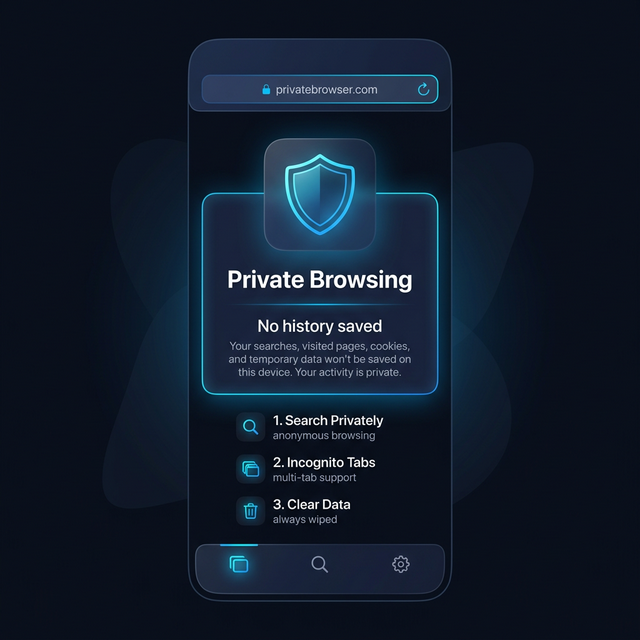
Calculator Hide App includes a private browser built directly into the vault. It’s not just incognito mode — browsing history, cookies, downloads, and cached data are all contained entirely within the encrypted vault and invisible to your phone’s regular browser, Google, or anyone who picks up your phone.
How to Open the Private Browser
- Open Calculator Hide App and enter your PIN.
- Inside the vault, tap the Browser tab or the globe icon.
- The browser opens inside the vault. It looks like a basic web browser.
- Browse normally. You can navigate to any website, search, log in to accounts, and download content.
What the Private Browser Protects
Unlike regular incognito mode, which only prevents local history from being saved on your device, Calculator Hide App’s private browser goes further. Here’s how it compares to standard incognito mode.
- No browsing history saved anywhere on your device outside the vault.
- No cookies or site data stored in your main browser.
- Downloads go directly into your encrypted vault — not your Downloads folder.
- The browser is not linked to your Google account or any signed-in browser profile.
- Closing the vault automatically clears the browser session.
Downloading Content Directly into the Vault
One of the most useful features of the private browser is that any file you download goes directly into your encrypted vault — not your Downloads folder or gallery. Images, videos, and documents downloaded via the browser are encrypted immediately upon download and never appear in any other app.
To download: long-press an image or link while browsing and select “Download.” The file goes straight into the vault.
Saving Website Logins Inside the Browser
The browser can save login credentials for websites you visit. These saved logins are stored inside the encrypted vault and are not accessible by your device’s regular browser or password manager. They are only available from within Calculator Hide App.
When to Use the Private Browser vs Regular Incognito
Use Calculator Hide App’s private browser when you want your browsing activity and any downloaded content to be completely invisible — not just untracked locally. Use regular incognito when you just don’t want a website stored in your browser history but don’t need full content isolation.
Clearing Browser Data Manually
To manually clear browsing data inside the vault, go to Browser Settings > Clear Data. This clears history, cookies, and cached data from within the browser. Note that downloaded files in the vault are not affected — they remain in your vault until you explicitly delete them.
Frequently Asked Questions
Does the private browser mask my IP address?
No. The private browser does not include a VPN — it prevents local tracking but your internet provider and the websites you visit can still see your IP address. If IP masking is important to you, use a separate VPN app alongside Calculator Hide App.
Can I use the private browser to log into social media?
Yes. You can log into any website through the private browser. Sessions are isolated inside the vault and do not affect your regular browser’s logged-in state.