Calculator Hide App is one of the most capable privacy apps on Android — but only if it’s set up correctly. Skip a step and you might end up with photos that aren’t truly hidden, or no way to recover your vault if you forget your PIN.
This guide covers everything from download to your first hidden photo, plus the two settings most new users miss.
Step 1: Download Calculator Hide App
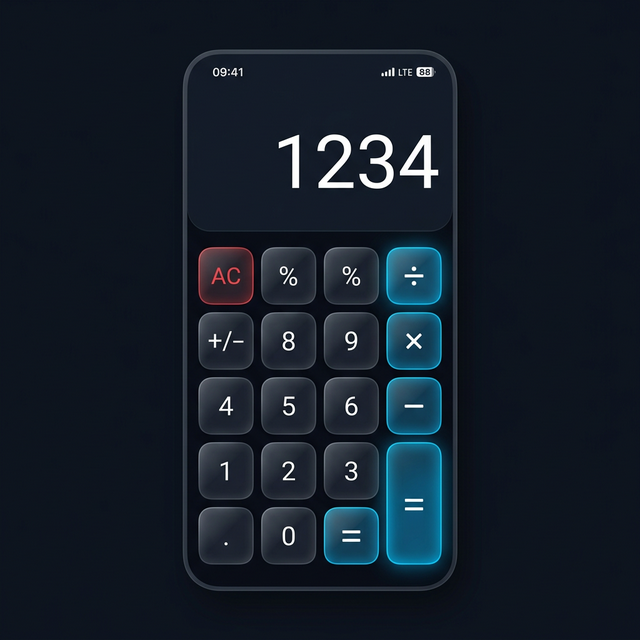
Open Google Play on your Android device and search for “Calculator Hide App.” Download and install it. When you open it for the first time, you’ll see what looks like a plain calculator — that’s exactly the point.
Step 2: Set Your Secret PIN
The first time you open the app, you’ll be prompted to create a PIN. Enter 4–8 digits. This PIN is how you unlock your vault — you’ll type it on the calculator keypad and press ”=” to open.
Choose a PIN you’ll genuinely remember, but avoid obvious choices like birthdays or sequential numbers. Write it somewhere secure outside the app when you first set it up.
Step 3: Set Up a Recovery Email (Don’t Skip This)
Before you hide anything, set up a recovery email. This is the most commonly skipped step — and the one people regret skipping when they forget their PIN.
- Inside the vault, go to Settings.
- Find “Recovery Email” or “Account Security.”
- Enter your email address and verify it.
With a recovery email set, you can always regain access to your vault even if you forget your PIN entirely.
Step 4: Enable Biometric Unlock (Optional but Recommended)
Go to Settings > Security > Biometric Unlock and enable it. This lets you open your vault with fingerprint or Face ID instead of typing your PIN every time. See the full comparison of biometric vs PIN security if you’re unsure which to use.
Step 5: Enable Cloud Backup (Don’t Skip This Either)
Go to Settings > Backup & Restore > Enable Cloud Backup. This creates encrypted cloud copies of your vault so your files are never permanently lost if your phone is lost, broken, or reset. Read how cloud backup works and why it matters.
Step 6: Import Your First Photos
- Inside the vault, tap the ”+” button.
- Select “Import from Gallery.”
- Choose the photos or videos you want to hide.
- Tap “Import.”
- When asked, choose “Delete Originals” to remove them from your gallery.
Your files are now encrypted inside the vault and invisible everywhere else on your device. See how to hide photos on Android for a more detailed walkthrough.
Step 7: Test It
Exit Calculator Hide App and open your gallery. Confirm the photos you imported are gone from the gallery. Then open Calculator Hide App, enter your PIN, and confirm they’re accessible inside the vault. If everything looks correct, your setup is complete.
Key Features to Explore Next
Now that you’re set up, explore the top 5 features of Calculator Hide App to get the most out of it — including the intruder selfie, private browser, decoy vault, and app hider.
Frequently Asked Questions
How long does the initial setup take?
About five minutes for the basic setup. Another five if you want to import your first batch of photos. The whole process is straightforward.
Can I change my PIN after setup?
Yes. Go to Settings > Security > Change PIN inside the vault at any time.
What if I make a mistake during setup?
You can redo any step from within Settings. The only thing you can’t easily undo is deleting the original photos after import — which is why testing the vault before deleting originals is a good habit.