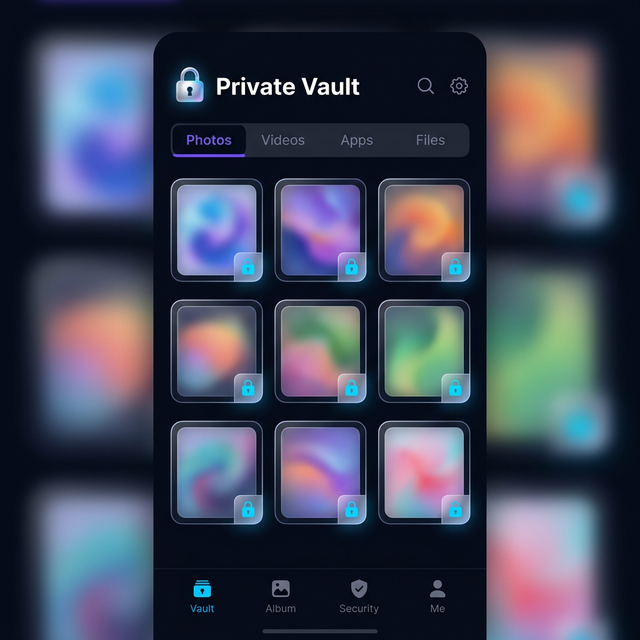
Hiding videos on an iPhone is trickier than it sounds. Apple’s built-in options are limited — you can mark videos as hidden in the Photos app, but they still appear in the Hidden album which anyone can find. That’s not real privacy.
Calculator Hide App gives you a genuinely private video vault disguised as a working calculator. Here’s exactly how to use it on iPhone.
Why the iPhone’s Built-in “Hide” Feature Isn’t Enough
When you hide a video in the Apple Photos app, it moves to a “Hidden” folder that is visible to anyone who goes to Albums > Hidden. In iOS 16 and later Apple added Face ID protection to this folder — but the folder still exists and is still findable. It also cannot hide app activity or protect specific apps.
Calculator Hide App works differently. Your videos are encrypted with AES-256 and stored inside a private vault that appears as an ordinary, fully functional calculator. No one sees a “Hidden” folder. No one knows a vault exists.
What You Need Before You Start
- An iPhone running iOS 14 or later
- Calculator Hide App installed from the App Store
- A PIN you’ll remember (4–8 digits recommended)
- The videos you want to hide saved in your Photos app or Camera Roll
Step-by-Step: How to Hide Videos on iPhone with Calculator Hide App
Step 1: Download and open Calculator Hide App
Open the App Store and search for “Calculator Hide App.” Download and install it. When you open it for the first time, it looks exactly like a standard calculator. That’s intentional.
Step 2: Set your secret PIN
On the calculator screen, enter your chosen PIN number and then press the ”=” button. This is how you unlock your vault — by entering your PIN as if you’re doing a calculation. Choose a number that isn’t obvious but that you’ll remember. Write it somewhere safe when you first set it up.
Step 3: Enable Face ID or Touch ID (recommended)
Once inside the vault, go to Settings > Security and enable biometric authentication. This lets you unlock the vault with your face or fingerprint instead of typing the PIN every time. For a full breakdown of which method is more secure, see Biometric vs PIN authentication. If you also want to enable the intruder selfie feature to capture photos of anyone who guesses the wrong PIN, see our guide on how to enable the intruder selfie.
Step 4: Import your videos into the vault
- Inside the vault, tap the ”+” button (usually in the bottom right corner).
- Select “Import from Photos” or “Import from Camera Roll.”
- Browse your photos and select the videos you want to hide. You can select multiple at once.
- Tap “Import” or “Add.”
- Calculator Hide App will encrypt each video and move it into the vault.
- Once imported, you will be asked if you want to delete the originals from your Camera Roll. Tap “Delete” to remove them from the public gallery.
Step 5: Verify the videos are hidden
Exit Calculator Hide App and open your iPhone’s Photos app. The videos you imported should no longer appear in your Camera Roll or in any album. They are now stored exclusively inside the encrypted vault.
To watch them, open Calculator Hide App, enter your PIN or use Face ID, and tap the video inside the vault. There is a built-in video player so you never need to export them to watch.
How to Access Your Hidden Videos Later
Open Calculator Hide App. It will look like a calculator. Enter your PIN followed by ”=” and the vault opens. All your hidden videos are there organized in your private gallery. You can watch them inside the app, move them between folders, or export them back to your Camera Roll if you no longer need them hidden.
Important Things to Know on iPhone
iOS restrictions on app hiding
Unlike Android, iPhone does not allow third-party apps to hide other installed apps. Calculator Hide App on iPhone focuses on media privacy — hiding your photos and videos — rather than app hiding. If you need to hide apps on an iPhone, the best approach is using Screen Time restrictions in iOS Settings.
iCloud and backups
Your hidden videos are stored locally inside the app’s encrypted vault. They will not appear in iCloud Photos unless you have explicitly enabled cloud backup inside Calculator Hide App. This means they will not sync to other devices or show up in iCloud.com — which is exactly the point.
What happens if you uninstall the app?
If you uninstall Calculator Hide App without first exporting your videos or enabling cloud backup, the encrypted vault is deleted and your hidden videos cannot be recovered. Always export videos you want to keep before uninstalling, or enable cloud backup first.
How to Hide Videos on iPhone vs Android: Key Differences
The process on iPhone is nearly identical to hiding videos on Android with one key difference: Android users can also hide other installed apps inside the vault, while iOS restrictions prevent this. Everything else — PIN unlock, AES-256 encryption, biometric access, the built-in video player — works the same way on both platforms.
Frequently Asked Questions
Does Calculator Hide App work on the latest iPhone models?
Yes. Calculator Hide App is regularly updated for the latest iOS versions and works on all iPhone models running iOS 14 and above, including the latest iPhone 15 and iPhone 16 series.
Can someone find my hidden videos if they search my phone?
No. When a video is moved into Calculator Hide App’s vault and deleted from your Camera Roll, it does not appear in Photos, Files, or any other app. The only way to access it is by opening Calculator Hide App and entering the correct PIN. The app itself looks like a calculator to anyone who picks up your phone.
Is there a limit to how many videos I can hide?
There is no set limit on the number of videos. The practical limit is your device storage — every video stored in the vault takes up space on your iPhone, just as it would in Photos.
Can I hide videos directly from within the app?
Yes. Calculator Hide App has a built-in private camera. You can record videos directly inside the vault and they will be saved there automatically, never touching your Camera Roll.