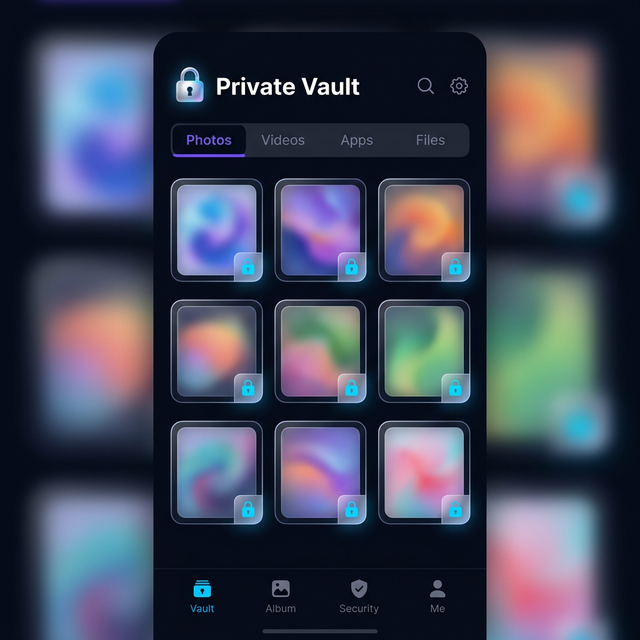
Your Android gallery is full of folders — Camera, Screenshots, WhatsApp Images, Downloads. Some of them contain files you’d rather keep private. Calculator Hide App lets you pull an entire folder into your encrypted vault at once, removing it from your gallery and locking it behind your PIN.
How Folder Hiding Works in Calculator Hide App
When you import a folder into Calculator Hide App, all files in that folder are encrypted and moved into the vault. The original folder in your gallery is emptied — the files are no longer visible in your gallery app, Google Photos, or any file manager. They exist only inside the encrypted vault.
Step-by-Step: Import a Folder into the Vault
- Open Calculator Hide App and enter your PIN.
- Inside the vault, tap the ”+” button to add new content.
- Select “Import from Gallery” or “Import from Files.”
- Navigate to the folder you want to hide. On Android, this lets you browse your internal storage directories.
- Select all files in the folder. Most gallery pickers let you tap a folder to select all its contents at once.
- Tap “Import” or “Add to Vault.”
- Calculator Hide App encrypts each file and moves it into the vault. Depending on folder size this may take a moment.
- Once complete, you will be asked whether to delete the originals. Tap “Delete Originals” to remove them from the gallery.
Organising Your Vault by Folder
Inside Calculator Hide App, you can create named folders within the vault to mirror the organisation you had in your gallery. Tap “New Folder,” name it, and move your imported files into it. This keeps things organised, especially if you’re hiding content from multiple sources.
Hiding WhatsApp Media Folders
WhatsApp saves every photo and video you receive to a folder called “WhatsApp Images” and “WhatsApp Video” on your device. If you want to hide this media, follow the steps above and select those specific folders. Once imported, the WhatsApp media folder in your gallery will be empty while your files remain safely inside the vault.
Hiding Screenshots
Screenshots are stored in the “Screenshots” folder on most Android devices. Importing this folder into the vault removes all screenshots from your gallery immediately. Useful if your screenshots contain sensitive information like bank details, messages, or addresses.
Frequently Asked Questions
Can I hide a folder without deleting the originals?
Yes. When prompted after import, choose “Keep Originals” instead of “Delete Originals.” The files will exist in both the vault and your gallery. This is useful if you want encrypted copies while keeping the originals accessible.
Will new files added to the original folder be automatically hidden?
No. Calculator Hide App imports a folder at a specific point in time. New files added to the original folder location after the import are not automatically moved to the vault. You would need to import them manually.
Can I export a folder back to my gallery?
Yes. Inside the vault, select the files you want to export, tap the export icon, and choose “Export to Gallery.” The files are decrypted and returned to your gallery.