Google Photos is convenient — but it automatically backs up every photo on your device to Google’s servers. If you take a photo you want to keep private, Google Photos may already have it before you even think about hiding it.
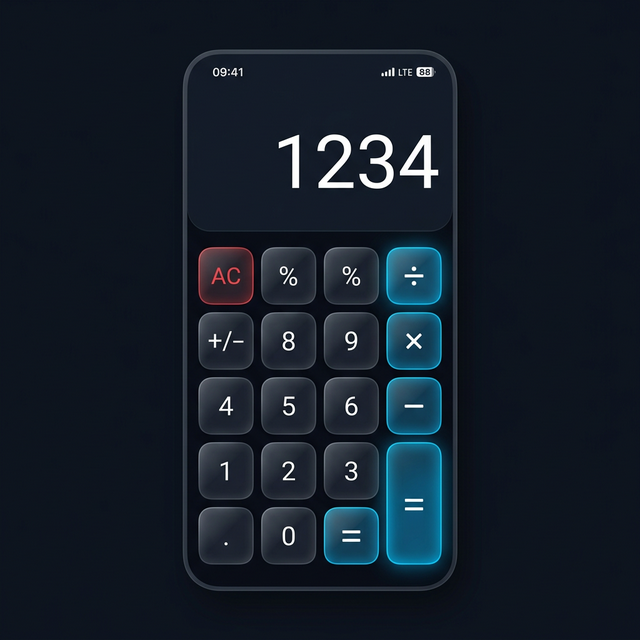
This guide shows you how to stop Google Photos from seeing specific photos, and how to use Calculator Hide App to keep those photos genuinely private.
The Problem with Google Photos and Private Photos
Google Photos auto-backup is turned on by default for most Android users. It scans your camera roll continuously and uploads new photos to your Google account. This means a photo you take at 9am is likely already in Google’s cloud by 9:05am. Your gallery app is not as private as it looks.
Standard “hiding” tricks — moving photos to a hidden folder, using the native Hidden album — don’t stop Google Photos from backing them up. You need a different approach.
Method 1: Import Into Calculator Hide App Before Google Photos Backs It Up
The most reliable method. As soon as you take or receive a photo you want private, import it into Calculator Hide App immediately and delete the original. Once the original is deleted and the trash is emptied, Google Photos cannot back up what no longer exists in your gallery.
- Take or receive the photo.
- Immediately open Calculator Hide App and import the photo.
- Delete the original from your gallery when prompted.
- Open Google Photos > Library > Trash and empty it.
Done. The photo never makes it to Google’s servers.
Method 2: Remove Already-Backed-Up Photos from Google Photos
If Google Photos has already backed up a photo you want private, you need to delete it from both your device and from Google Photos.
- Open Google Photos and find the photo.
- Tap and hold to select it.
- Tap Delete. This deletes it from Google Photos and your device simultaneously.
- Go to Library > Trash in Google Photos and tap “Empty Trash.”
- The photo is permanently removed from Google’s servers.
For a complete guide on ensuring nothing lingers, see how to delete hidden photos permanently.
Method 3: Exclude Specific Folders from Google Photos Backup
Google Photos lets you exclude specific folders from auto-backup. This is useful if you have a download folder or specific album you never want backed up.
- Open Google Photos.
- Tap your profile picture > Photos settings > Backup.
- Tap “Back up device folders.”
- Toggle off any folder you want excluded from backup.
Note: this prevents future backups of those folders but does not remove photos already backed up.
Using Calculator Hide App’s Own Cloud Backup Instead
Calculator Hide App has its own encrypted cloud backup that is completely separate from Google Photos. When you enable it, your hidden photos are backed up in an encrypted form that only you can access — not visible in Google Photos or to Google. This gives you cloud redundancy without Google seeing your private files. How cloud backup works in Calculator Hide App.
Frequently Asked Questions
If I delete a photo from Google Photos, is it gone from Google’s servers?
Yes, after you empty the trash. Google Photos keeps deleted photos for 60 days in the trash before permanently removing them. Emptying the trash accelerates permanent deletion.
Does Google Photos back up photos from inside Calculator Hide App?
No. Files inside Calculator Hide App’s encrypted vault are not visible to Google Photos or any other app. Only your main gallery and accessible folders are scanned for backup.
Can I use Google Photos Locked Folder instead?
Google Photos Locked Folder is a basic alternative — it creates a protected space within Google Photos that isn’t backed up. However, it is still tied to your Google account, visible to anyone who signs into your account, and lacks the calculator disguise and AES-256 encryption of Calculator Hide App. See the full comparison of gallery app privacy options.