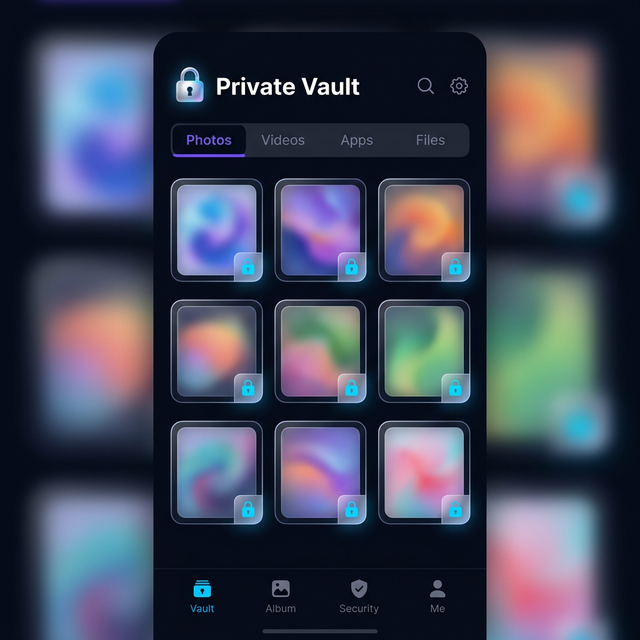
Calculator Hide App already looks like a calculator by default — which is excellent camouflage. But if you want to go further, you can change the app icon to look like almost any common app: a browser, a clock, a notes app, a settings icon.
Here’s how to do it and why it matters.
Why Change the Icon?
A calculator app on your home screen is convincing to most people. But someone who knows about vault apps — a tech-savvy family member, for example — might recognise “Calculator” as a possible vault. Changing the icon to something even more mundane (like Settings or Clock) adds an extra layer of implausibility.
How to Change the App Icon
- Open Calculator Hide App and enter your PIN.
- Go to Settings inside the vault.
- Find “Icon Disguise,” “App Icon,” or “Disguise Mode.”
- Choose from the available icon presets — typical options include Calculator, Browser, Clock, Notes, Settings, Weather.
- Tap the icon you want to use.
- Confirm the change. The app icon on your home screen updates immediately.
The app functions identically regardless of which icon is displayed. You still enter a PIN to open the vault — the icon is purely cosmetic.
Which Icon Disguise Works Best?
The best disguise is the one that fits naturally with the rest of your home screen. If you have multiple clock or timer apps visible, adding a “Clock” icon for Calculator Hide App would stand out. If you have many productivity apps, a “Notes” icon blends in seamlessly.
The calculator icon remains one of the best choices for most people — nearly every phone comes with a calculator app, so one more is invisible. The disguise is most convincing when the icon matches an app that would naturally be on your phone.
Changing the App Name (Advanced)
Some versions of Calculator Hide App also let you change the app’s display name — what appears below the icon on your home screen. Changing the name to “Calculator,” “Clock,” or “Notes” to match the icon makes the disguise complete. This option is in the same Icon Disguise section of Settings.
What This Feature Doesn’t Do
Changing the icon does not change how the app appears in Settings > Apps or in the Google Play library. Anyone checking your phone’s full app list via Settings > Apps will still see Calculator Hide App by its real name. The icon change only affects the home screen appearance.
Frequently Asked Questions
Does changing the icon affect the app’s function?
No. The vault, PIN, and all features work identically regardless of which icon is displayed.
Can I change back to the calculator icon?
Yes. Return to Settings > Icon Disguise at any time and select the calculator icon to restore the default appearance.
Will the icon change survive an app update?
Yes. Icon preferences are saved inside the app and persist through updates.